
Customizing the user welcome email
The user welcome email is sent when any of the following occurs:
- An unverified end user clicks Forgot password? and enters their email.
- An unverified user clicks the ticket link in the email they receive after submitting a support request. They are directed to Zendesk to provide their email address to get a verification link to set a password. (This workflow is the same as the "forgot password" steps. Both will send the end user a welcome email, not a verification email.)
- An end user completes the signup form to create a profile.
- An agent creates the user and Also send a verification email when a new user is created by an agent or administrator is enabled.
- An agent clicks Resend verification email on an end-user profile.
This email is sent from the default support address of the brand where the user signed up. The exception is when profiles are created through the Web Widget; the welcome email is sent from the default support address of the default brand.
If a user is created by an agent using +Add user and Also send a verification email when a new user is created by an agent or administrator is enabled, the Welcome email is sent from the support address of the brand selection entered at the time of user creation.
If an agent creates the user by entering the user's email into the Requester field instead of clicking +Add user, the email is sent from the agent brand instead of the default or ticket brand. The agent brand is the brand that agents are routed to when they sign in to Zendesk. If the help center of the agent brand isn't active, but other help centers are active, the welcome email is sent from the oldest brand with an active help center.
To customize the user welcome email
- In Admin Center, click
 People in the sidebar, then select Configuration > End users.
 - In the Account emails section, update the text in the User welcome email text field.
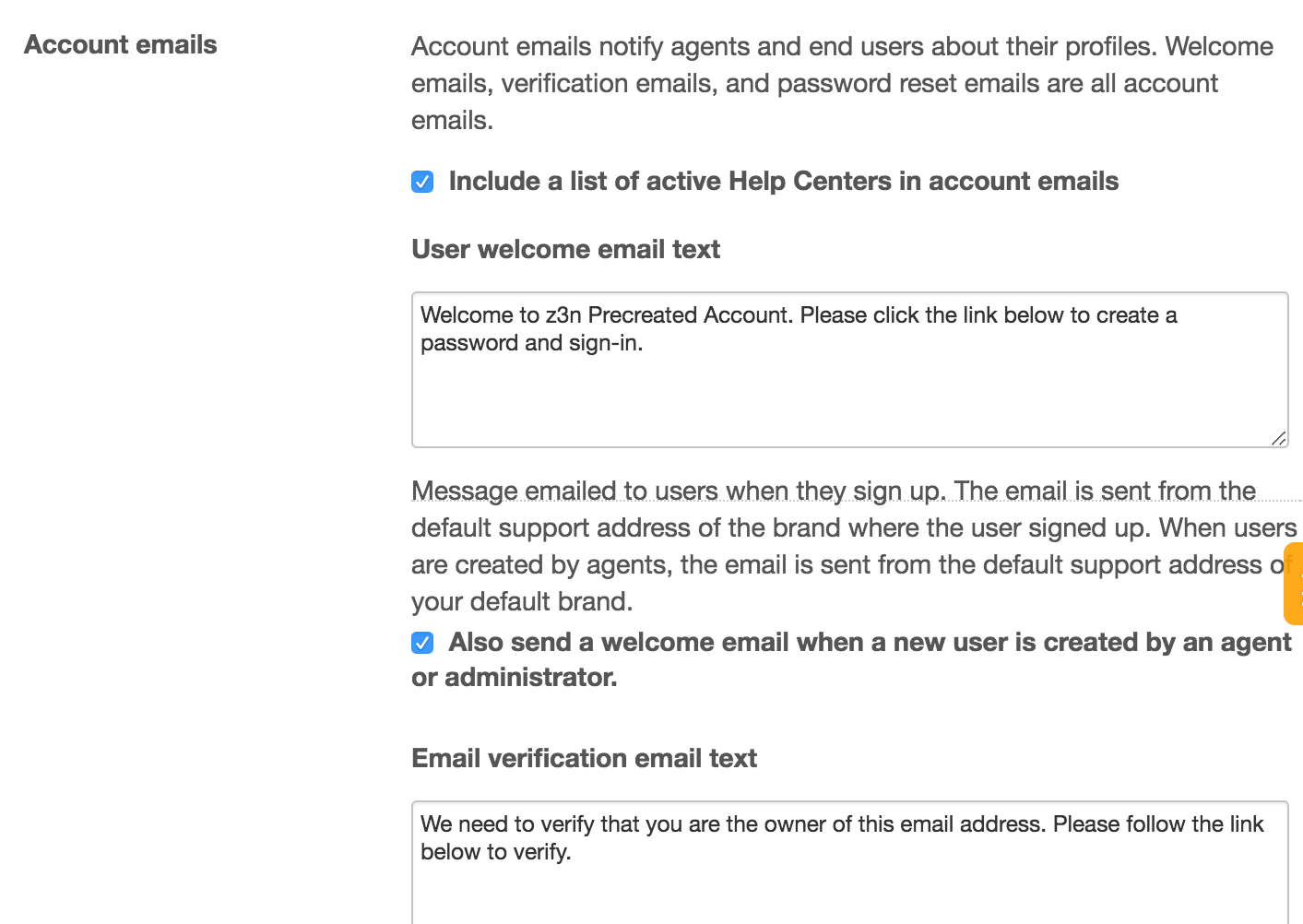
- (Optional) Select Also send a welcome email when a new user is created by an agent or administrator to send an email when a new user is created on behalf on an end user; deselect this option to send a welcome email only when the end user creates their own new user.
- Click Save tab at the bottom of the page.
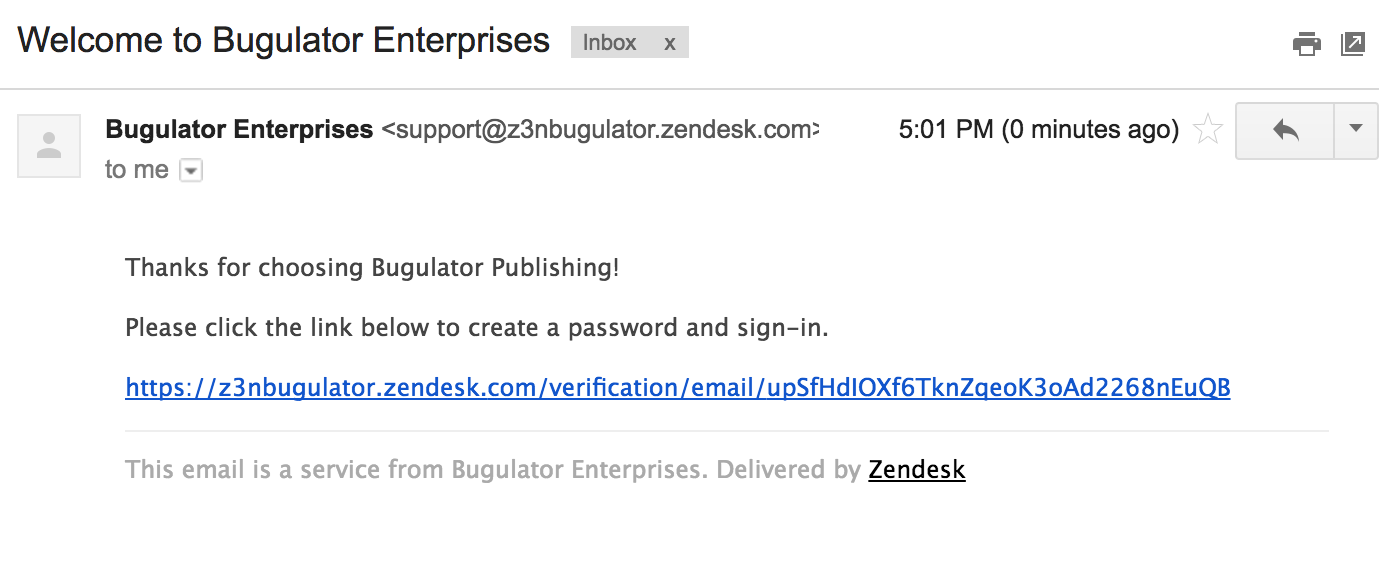
The user receives a welcome email, including a link to complete their registration:
If you have multiple brands, you also have the option to include a list of active help centers in the welcome email. Click Include a list of active Help Centers in account emails checkbox to enable this feature.
Comments
0 comments
Please sign in to leave a comment.